> ## Documentation Index
> Fetch the complete documentation index at: https://docs.cellulose.ai/llms.txt
> Use this file to discover all available pages before exploring further.
# Getting Started with the Python SDK
The easiest and quickest way to upload your PyTorch models onto the Cellulose
dashboard is via our [Python SDK](https://pypi.org/project/cellulose-sdk).
## Installation
Let's start by installing it with `pip`:
```bash Installing via pip theme={null}
pip install cellulose-sdk
```
While the Python SDK doesn't currently require PyTorch 2.0
(`torch > 2.0.0`),
some of our future SDK features will require it as we'll start using many of
the new PyTorch 2.0 APIs / IRs such as `.compile()`.
## Add Cellulose decorator to your nn.Module
Let's create a new Python script that contains a simple `nn.Module` that we
eventually want to export and upload to the dashboard.
First, let's import everything we'll need in the later steps:
```python Cellulose imports theme={null}
# Third party imports
import torch.onnx
import torch.utils.model_zoo as model_zoo
from torch import nn
from torch.nn import init
# Cellulose imports
from cellulose.api.cellulose_context import CelluloseContext
from cellulose.decorators.cellulose import Cellulose
```
We'll first use the `Cellulose` decorator and come back to `CelluloseContext`
in a later section.
Decorate the `SuperResolutionNet` module with the `Cellulose` decorator, then
provide the `input_names` and `output_names` arguments:
```python theme={null}
@Cellulose(
input_names=["input"],
output_names=["output"],
)
class SuperResolutionNet(nn.Module):
def __init__(self, upscale_factor, inplace=False):
super(SuperResolutionNet, self).__init__()
self.relu = nn.ReLU(inplace=inplace)
self.conv1 = nn.Conv2d(1, 64, (5, 5), (1, 1), (2, 2))
self.conv2 = nn.Conv2d(64, 64, (3, 3), (1, 1), (1, 1))
self.conv3 = nn.Conv2d(64, 32, (3, 3), (1, 1), (1, 1))
self.conv4 = nn.Conv2d(32, upscale_factor**2, (3, 3), (1, 1), (1, 1))
self.pixel_shuffle = nn.PixelShuffle(upscale_factor)
self._initialize_weights()
def forward(self, x):
x = self.relu(self.conv1(x))
x = self.relu(self.conv2(x))
x = self.relu(self.conv3(x))
x = self.pixel_shuffle(self.conv4(x))
return x
def _initialize_weights(self):
init.orthogonal_(self.conv1.weight, init.calculate_gain("relu"))
init.orthogonal_(self.conv2.weight, init.calculate_gain("relu"))
init.orthogonal_(self.conv3.weight, init.calculate_gain("relu"))
init.orthogonal_(self.conv4.weight)
```
Now that we've defined the model, let's instantiate it as `torch_model`,
call `load_state_dict` and set it to eval mode:
```python Initialization and export theme={null}
if __name__ == "__main__":
# Create the super-resolution model by using the above model definition.
torch_model = SuperResolutionNet(upscale_factor=3)
BATCH_SIZE = 10
# Load pretrained model weights
model_url = "https://s3.amazonaws.com/pytorch/test_data/export/superres_epoch100-44c6958e.pth"
# Initialize model with the pretrained weights
map_location = lambda storage, loc: storage # noqa: E731
if torch.cuda.is_available():
map_location = None
torch_model.load_state_dict(
model_zoo.load_url(model_url, map_location=map_location)
)
# set the model to inference mode
torch_model.eval()
```
## Create an input tensor
```python Model input theme={null}
input_tensor = torch.randn(10, 1, 224, 224, requires_grad=True)
```
## Instantiate a CelluloseContext
Now let's create a `CelluloseContext` and pass in a personal API key. You can
read more on how to create / retrieve your API keys
[here](https://docs.cellulose.ai/dashboard/personal-api-keys).
```python theme={null}
cellulose_context = CelluloseContext("YOUR_API_KEY")
```
We generally do not recommend setting these API keys in plain text for security
reasons. It's better to handle it via a secrets manager like AWS Secrets Manager
or Doppler then have it injected as an environment variable.
## Export and upload the model to the dashboard
We just provide the `torch_model` module and the input tensor to
`CelluloseContext`'s `export()` method like below:
```python theme={null}
cellulose_context.export(
torch_model=torch_model,
input=input_tensor,
)
```
This step would handle the model upload automatically for you.
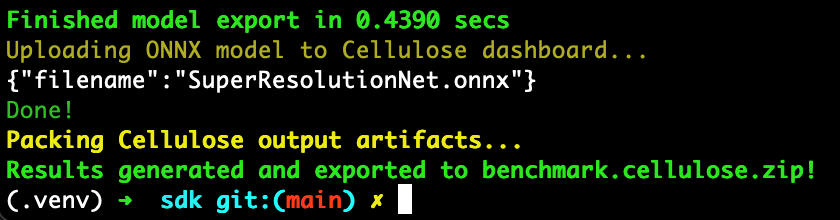
If all goes well, you'll get something like the following:
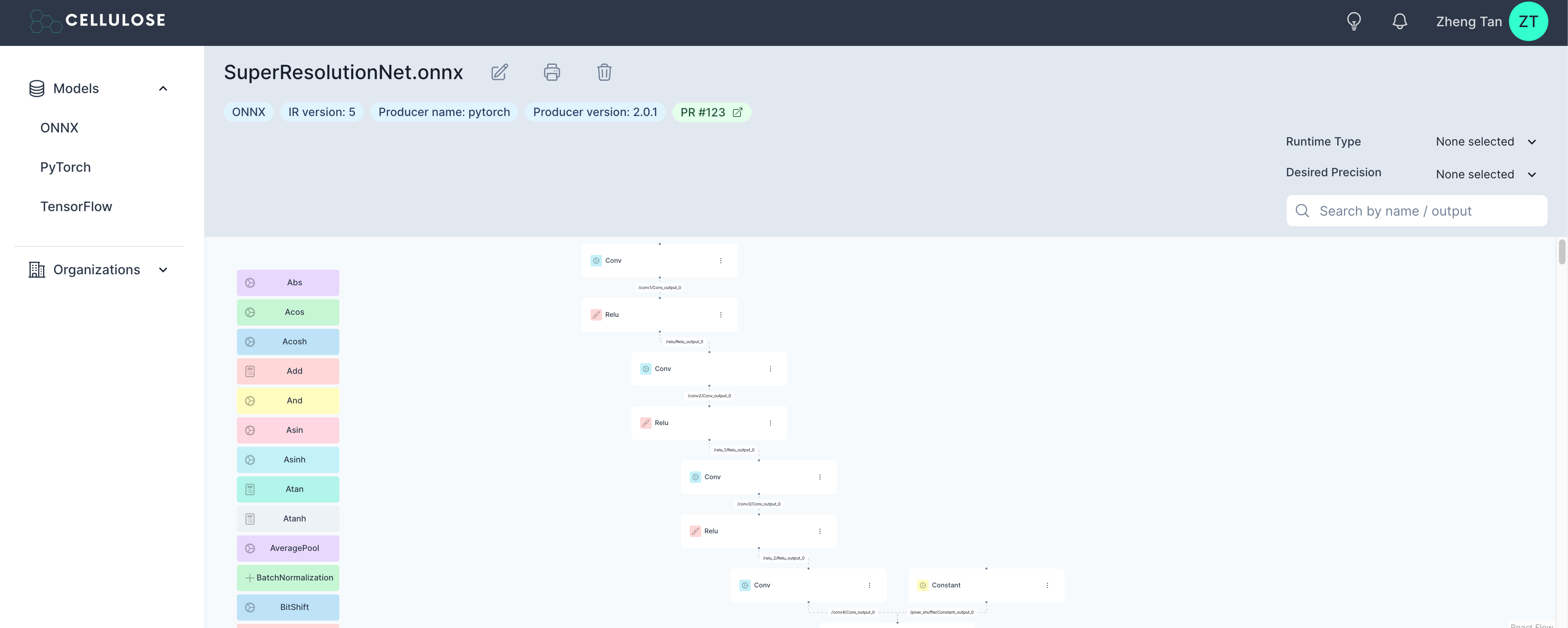
 You can now navigate to your dashboard to find the uploaded model!

 If it didn't go well, you might get the following:
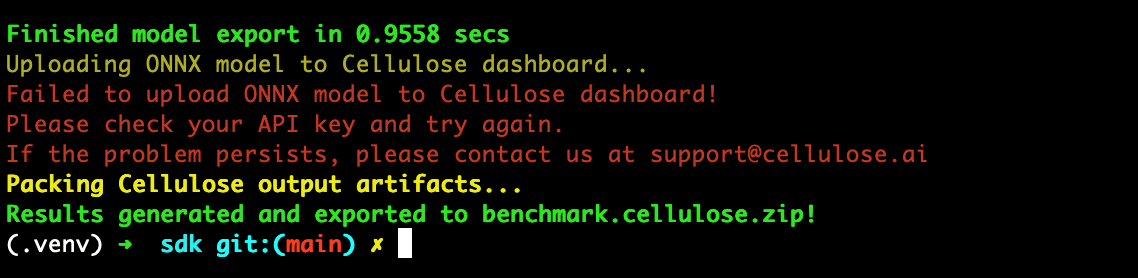 Please reach out to [support@cellulose.ai](mailto:support@cellulose.ai) in this case. We'd like to help and
get you on your way ASAP!
## Generate the Cellulose artifact with all exported model assets
The SDK also has a `flush` method that conveniently packs all the generated
ONNX outputs in a zip file.
```python Generate and save all export artifacts theme={null}
cellulose_context.flush(name="generated_artifacts", target_directory=".")
```
The line of code above generates a `generated_artifacts.cellulose.zip` folder
in the "current" directory.
Here are the contents once it is unzipped:
Please reach out to [support@cellulose.ai](mailto:support@cellulose.ai) in this case. We'd like to help and
get you on your way ASAP!
## Generate the Cellulose artifact with all exported model assets
The SDK also has a `flush` method that conveniently packs all the generated
ONNX outputs in a zip file.
```python Generate and save all export artifacts theme={null}
cellulose_context.flush(name="generated_artifacts", target_directory=".")
```
The line of code above generates a `generated_artifacts.cellulose.zip` folder
in the "current" directory.
Here are the contents once it is unzipped:
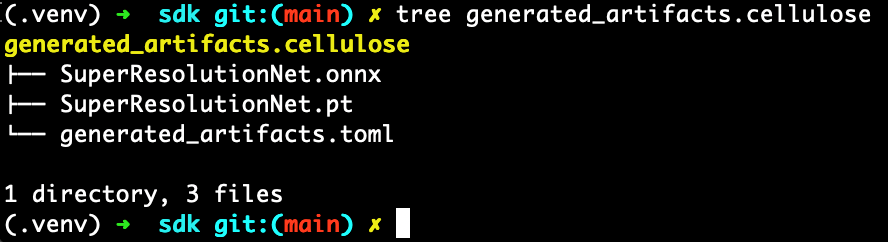 The TOML metadata file is autogenerated and shouldn't be directly modified. This
is mostly useful to us for debugging and diagnostics purposes so we can help you
resolve issues quickly if you run into them.
While limited in feature scope today, the Cellulose artifact will play a larger
role when interfacing with the larger Cellulose roadmap and future product
offerings.
Congratulations! You've uploaded your first PyTorch model to the dashboard via
the SDK!
For your convenience, the full example Python script is also available
[here](https://github.com/celluloseai/sdk/blob/main/examples/super_resolution_net_example.py).
## Have questions / need help?
Please reach out to [support@cellulose.ai](mailto:support@cellulose.ai), and we'll get back to you as soon
as possible.
The TOML metadata file is autogenerated and shouldn't be directly modified. This
is mostly useful to us for debugging and diagnostics purposes so we can help you
resolve issues quickly if you run into them.
While limited in feature scope today, the Cellulose artifact will play a larger
role when interfacing with the larger Cellulose roadmap and future product
offerings.
Congratulations! You've uploaded your first PyTorch model to the dashboard via
the SDK!
For your convenience, the full example Python script is also available
[here](https://github.com/celluloseai/sdk/blob/main/examples/super_resolution_net_example.py).
## Have questions / need help?
Please reach out to [support@cellulose.ai](mailto:support@cellulose.ai), and we'll get back to you as soon
as possible.